Frontline workers use Time Entries to record the time they work on a specific day. They can link entries to a rostered shift, an availability declaration, or create them independently, depending on the applicable time entry rules.
This guide outlines the data entry process and explains how each field behaves during time entry creation.
The below process outlines how time entries are created and processed by the system before being assigned to an Approver for actioning the time entry.
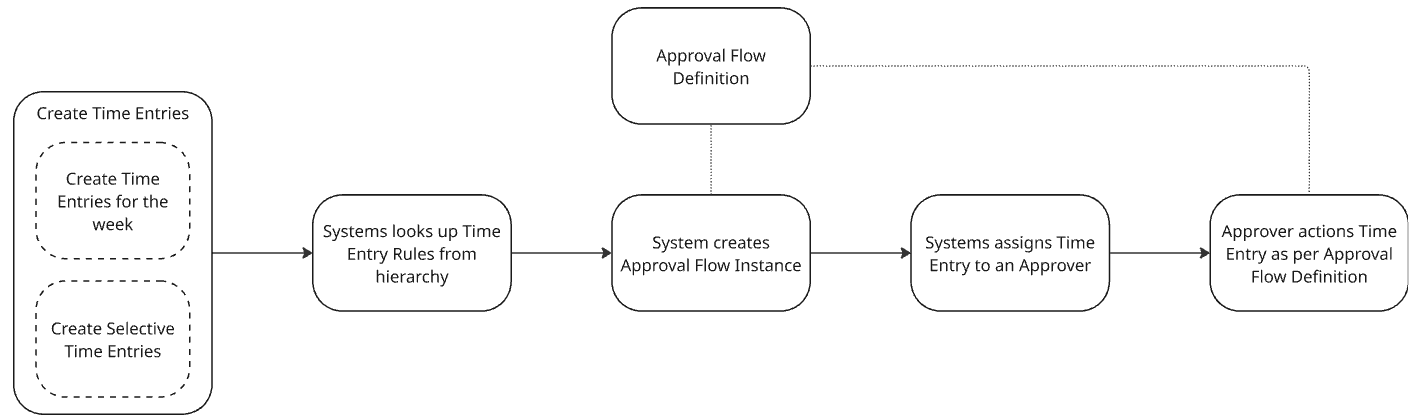
Create a New Time Entry:
Open PowerRoster App > Rosters > Time Management section of the Navigation Pane> Entries
.png)
Select +New.
.png)
Complete the fields in each section. Listed below are notable properties of the form fields for guidance.
Click on Save.
Field
Description
*Resource
Automatically populated based on the current user (cannot be modified).
*Date
Defaults to today’s date.
If creating from a shift, the shift’s date will be used.
The Date can also be manually adjusted if required.
Roster
Link the time entry to its related Roster.
It can be pre-filled if starting from a Roster record..
Shift
This field remains blank when creating a new entry directly.
It can be pre-filled if starting from a shift record.
Duration
Determined by environmental rules. Recording duration may be calculated automatically based on Start and End times or selected manually.
Break Duration
Recording Break Duration may be calculated automatically based on Start and End times or selected manually.
*Start Time
Enter the actual time the work began.
*End Time
Enter the actual time the work was completed.
Rule
Automatically set by Roster Time Management Rules.
*Category
Options in this lookup are filtered based on the Resource, Date, and (if set) Shift.
If only one valid Category is found, it is automatically selected.
If two or more are found, the value will be set by pre-configured rules in the environment.
Subcategory
Options in this lookup field are filtered based on the selected Category.
Status
Set automatically when approval flows are configured. However, it can be manually selected if approvals are not enforced.
Time Entry Mode
Automatically set by the rule.
Enable Break Tracking
Automatically set by the rule.
Comments
Free text area for comments.
Approval Flow
Automatically set by the rule.
Note
When a new Time Entry is created, the following fields are populated first:
Resource
Date
Shift
Once these three fields are defined, the system evaluates the applicable Time Entry Rules and filters the Category field accordingly.
Capturing Time
Time can be entered in one of two ways, depending on the rule applied:
Duration-Based Entry
The worker must enter the total number of hours and minutes
Start and End Times may be hidden
Break Duration may be shown or hidden depending on configuration
Timestamp-Based Entry
The worker must enter the Start Time and End Time
Duration is calculated automatically
Break Duration may also be entered if allowed
Fields that may appear:
Duration
Required if the rule is duration-based
May be locked or editable depending on rule settings
Start Time / End Time
Required if the rule is timestamp-based
May be hidden when not applicable
Break Duration
Optional
May be automatically populated, hidden, or editable
Controlled by rule settings such as break tracking and default values
Comments
Optional
Free-text field used to add additional context
Understanding Time Entry Status
Each time entry has a Status that reflects its current state in the workflow. This may change automatically depending on the system configuration. The statuses available are configured to suit business needs and may be different based on your environment’s configuration.
Draft – The Entry is created but not submitted.
Submitted – The Entry is sent for approval.
Approved – Entry is reviewed and accepted.
Rejected – Entry is declined and requires correction.
Important
Time Entry fields and behaviour are driven by Time Entry Rules, which are configured by the organisation
Rules define what categories are available, how time is captured, and whether certain fields (like breaks or timestamps) are required
If no applicable rule is found for the selected Resource, Date, and Shift, the system will prevent the entry from being created