A Compliance Rule is a definition of an organisation, department or team policy that needs to be followed when scheduling or rostering resources on a Roster.
Setting up the Compliance Rules ensures that criteria such as maximum working hours, minimum breaks between shifts, and maximum weekend hours are automatically considered without the Workforce Planner needing to worry about every requirement.
These rules alert Workforce Planners to potential compliance issues, ensuring that all rosters align with organisational policies. Built-in checks provide peace of mind by preventing breaches and ensuring compliance is maintained, so planners can confidently create rosters without worrying about breaching regulations.
Example for Compliance Rules:
Shift is a specific type.
Maximum Working Hours.
Minimum Break between shifts.
Navigate Rules
Developers generally create compliance rules. Customers who use compliance rules are encouraged to work with Microsoft Partner/Velrada to set up their initial rules, which can then be further refined using Compliance constraints.
To navigate the Rules:
Navigate to the PowerRoster App > Settings > Go to the Compliance area and select Rules.
Click on +New to create a new Compliance Rule.
Fill in the required fields and click Save.
.png)
Field | Description |
*Name | Name of the Rule. |
Description | The description of the rule describes what the rule does. |
Is Valid | The field is auto-populated on save. It is used to state whether the Lambda Expression is a valid expression or not. |
*Lambda Expression | Formula expression is used to interact with the C# model and define the rule. |
Metadata | Metadata script JSON formula is used to break down bigger statements into smaller logical expressions as parameters within a rule definition. See the table below for the Metadata data structure. |
Parameters | Parameter used within the Rule to allow it to be reused by multiple Compliance Constraints. |
Data model for the Metadata field
Field | Data Type | Nullable | Description |
|---|---|---|---|
SuccessEvent | String | No | The message logged when rule complies. Note this is not used in the system. |
ErrorMessage | String | No | The message displayed to users when the rule breaches (returns false). |
LocalParams | Array: Object | No | List of LocalParams. Local Params are reusbale parameters that can be used in the rule expression. Think of it as a C# parameter for a method. |
LocalParams.Name | String | No | Name of the Local Param. |
LocalParams.Expression | String | No | Expression of the Local Param. |
Parameters
Parameters are used in Compliance Rules to extend their functionality and increase flexibility. Parameters allow developers to define placeholders that can be modified to create multiple instances of a Compliance Rule.
Go to the Parameters tab and click New Parameter to create a Parameter for the Compliance Rule.
Field | Description |
|---|---|
*Name | Name of the Parameter. |
Default Value | The default value set for the Parameter if there is no value defined. |
.png)
Revalidation of Compliance Rule after Parameter update
PowerRoster Release 8.2 update forces the system to re-evaluate a Compliance Rule if a parameter within the rule is changed. This allows a user to check if the changes make a rule invalid or not before running compliance checks.
Expression Data Model
Compliance Rules can be written against the below properties on the C# class.
The ShiftModel object will be referenced by a variable name of input1.
For example, here is a rule expression checking a shift has a clock on value input1.ClockOn.HasValue && input1.ClockOn.Value != DateTime.MinValue.
Field | Data Type | Nullable | Description |
|---|---|---|---|
ID | Guid | No | Unique ID of the shift. |
ShiftType | String | Yes | The shift type. |
ResourceId | Guid | Yes | Unique id of the resource assigned to the shift. |
ResourceName | String | Yes | Name of the resource assigned to the shift. |
Start | DateTime | Yes | Start date and time of the shift. |
End | DateTime | Yes | End date and time of the shift. |
ClockOn | DateTime | Yes | Date Time resource started the shift. Note: clock on field is set by the resource using the Frontline App. |
ClockOff | DateTime | Yes | Date Time resource started the shift. Note: clock on field is set by the resource using the Frontline App. |
PreviousShifts | Array: ShiftModel | Yes | List of shifts assigned to the resource that occurred before the target shift. |
FutureShifts | Array: ShiftModel | Yes | List of shifts assigned to the resource that occurred after the target shift. |
PowerRoster Compliance Rule Example
In this example, we will create a Compliance Rule when the Shift has a particular Type.
Field | Data |
Name | Shift is particular type |
Lambda Expression | ExpressionExtensions.CheckContains(input1.ShiftType, "|Shift Type|") |
Metadata | { "SuccessEvent":"Has shifts", "ErrorMessage":"shift is not of type |Shift Type|" } |
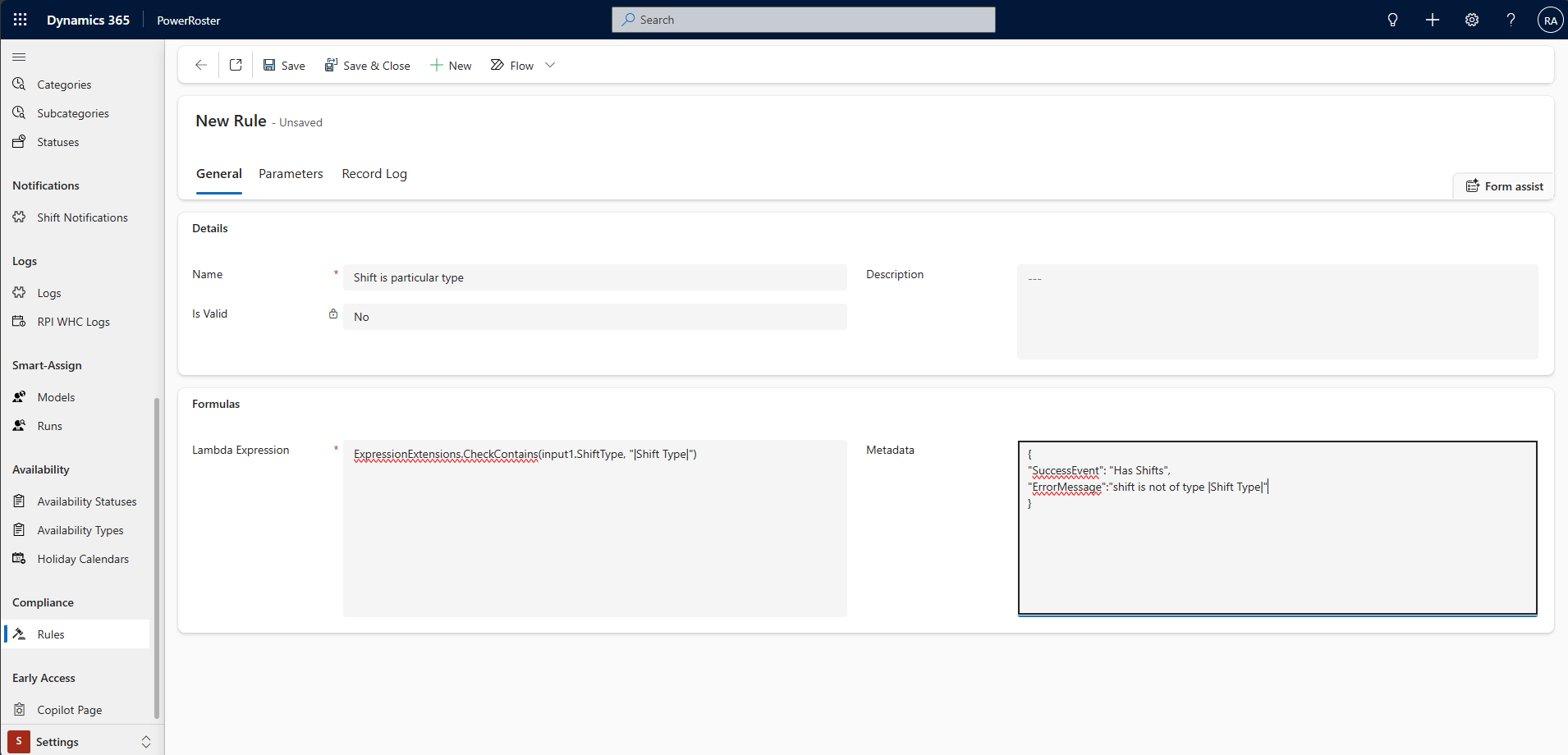
Complex PowerRoster Compliance Rule Example
In this example, we will create a Compliance Rule to ensure employees do not exceed the maximum allowed hours per week, averaged over a reference period (e.g., a maximum of 55 hours per week averaged over 17 weeks).
Field | Data |
Name | Average Hours Per Reference Period |
Lambda Expression | (input1.PreviousShifts .Where(s => s.Start >= input1.Start.Value.AddDays(-1 * referencePeriodInDays.First())) .Sum(s => Convert.ToInt32(Math.Round(((s.End.Value.Subtract(s.Start.Value).TotalMinutes) / 60), 0))) / referencePeriodInWeeks.First()) <= |maxAverageHours| |
Metadata | { "SuccessEvent": "Is within average hours per referesgasdnce period", "ErrorMessage": "WARNING: Is OVER average hours per reference period", "LocalParams": [ { "Name": "referencePeriodInHours", "Expression": "(new int[] {|referencePeriodInHours|})" }, { "Name": "referencePeriodInDays", "Expression": "(new int[] {referencePeriodInHours.First()/24})" }, { "Name": "referencePeriodInWeeks", "Expression": "(new int[] {referencePeriodInHours.First()/(24*7)})" } ] } |
.png)
Create the maxAverageHours Parameter
Field | Data |
Name | maxAverageHours |
Is Required | No |
Data Type | Integer |
Default Value | N/A |
Metadata | N/A |
Create the referencePeriodHours Parameter
Field | Data |
Name | referencePeriodInHours |
Is Required | No |
Data Type | Integer |
Default Value | N/A |
Metadata | N/A |
Video Walkthrough
The following video demonstrates how to create a Compliance Rule for Maximum Shift Hours Per Day.
Note
The Nightly Compliances Runs are created by Power Automate and run every night.