vForm Responses is where users enter answers to the questions defined in a vForm Template. Each response is linked to a specific template and captures user inputs for reporting and workflow automation in Dynamics 365.
Users can create vForm Responses using two methods:
Quick Create (+) — for fast, inline entry.
Main Form — for full-page editing and detailed review.
Accessing vForm Responses
To view or create responses:
In Dynamics 365, go to vForms in the sitemap.
Select vForm Responses from the left navigation panel.
The Active vForm Responses view displays all existing records.
Creating a vForm Response using Quick Create
Select the + icon on the top bar to open the quick create vForm Response record.

Enter a unique name for your response in the Name field.
From the vForm Template lookup, select the desired template.
.png)
Answer the questions displayed under each section.
Required questions are marked with a red asterisk (*).
You cannot submit the form until all required fields are completed.
Select Save and Close.
A confirmation message appears: “Your changes were saved.”
Creating a vForm Response from the Main Form
In the sitemap, select vForm Responses.
Click + New on the command bar.
A new vForm Response page opens.
Enter a name in the Name field.
Select a vForm Template from the lookup field.
.png)
Once a template is selected, the form automatically populates with questions.
Complete the required and optional fields as displayed.
Required questions must be answered before moving to the next section or saving.
Select Save or Save & Close when finished.
If a required question is not answered:
The system displays an error banner at the top of the page.
The question field is highlighted in red with a Response required note.
.png)
To continue, fill in the required answer and save again.
Understanding Read-Only Mode
There are two conditions where a vForm Response becomes read-only:
Record Deactivation — When the response record is deactivated, the entire survey becomes read-only.
Read-Only Questions — If any question in the vForm Template is configured as read-only, the full survey will open in read-only mode.
.png)
To make a survey editable again:
reactivate the record by selecting Activate in the command bar or
Modify the question settings in the template to remove read-only restrictions.
.png)
Multi-Page Forms
When completing a multi-page survey:
You must answer all required questions on the current page before proceeding to the next.
Navigation will be blocked until the required fields are complete.
.png)
Downloading or Saving Responses as PDF
After completing the survey, scroll to the bottom of the form.
Select Download PDF to save a local copy of your response.
Select Save PDF to store the completed response in the Response Summary tab.
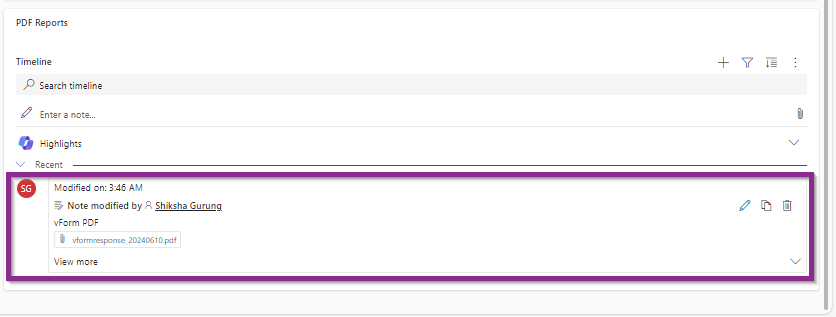
The system automatically saves the PDF in the Timeline/PDF Report section..png)
Once generated, the pdf file can be found in the PDF Reports subgrid in the Response Summary tab.
Viewing the Response Summary
The Response Summary tab provides a consolidated view of user responses.
Displays a summary of all answers submitted by the respondent.
Includes a Response Items grid listing each response record.
.png)