Navigate to PowerRoster App > Settings > Smart-Assign Section and Select Models.
Select +New.
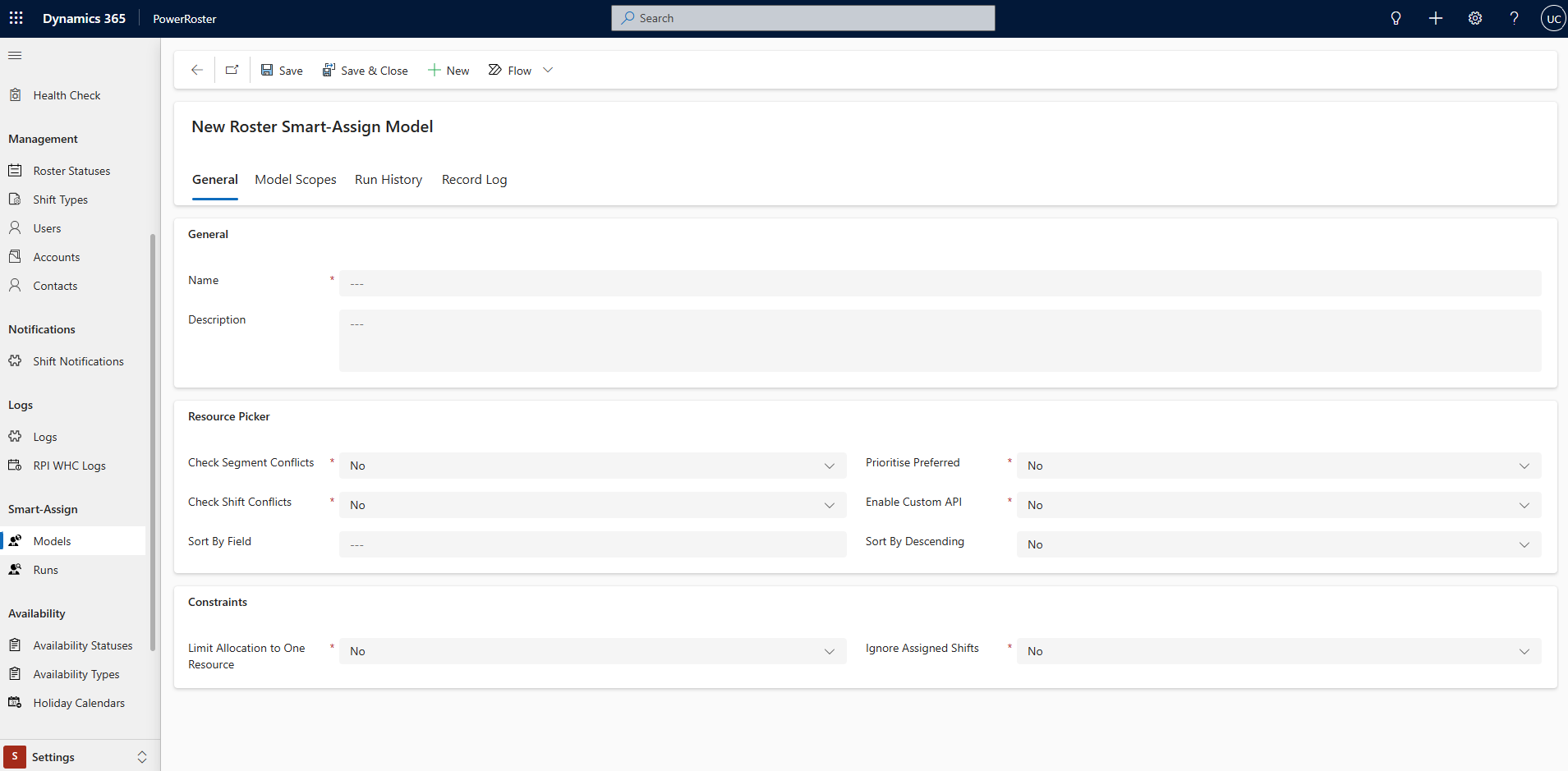
Fill in the required fields and Save.
Field | Description |
*Name | Enter the Name of the Model. |
Description | Add a description to the Model. |
*Check Segment Conflicts | Ignore Resources booked against Segments. |
*Check Shift Conflicts | Ignore Resources booked against Shifts. |
Sort By Field | Sort Resources (Default by Name). |
*Prioritise Preferred | Prioritise Preferred Resources. |
*Enable Custom API | Allows resource filtering via Custom API. (Refer to the Custom API. Documentation for more information on this Resource Explorer feature). |
Sort By Descending | Sets sorting order (False for Ascending, True for Descending). |
Limit Allocation to One Resource | Limits shifts to one resource per allocation. |
*Ignore Assigned Shifts | Excludes already assigned Shifts. |
Model Scopes
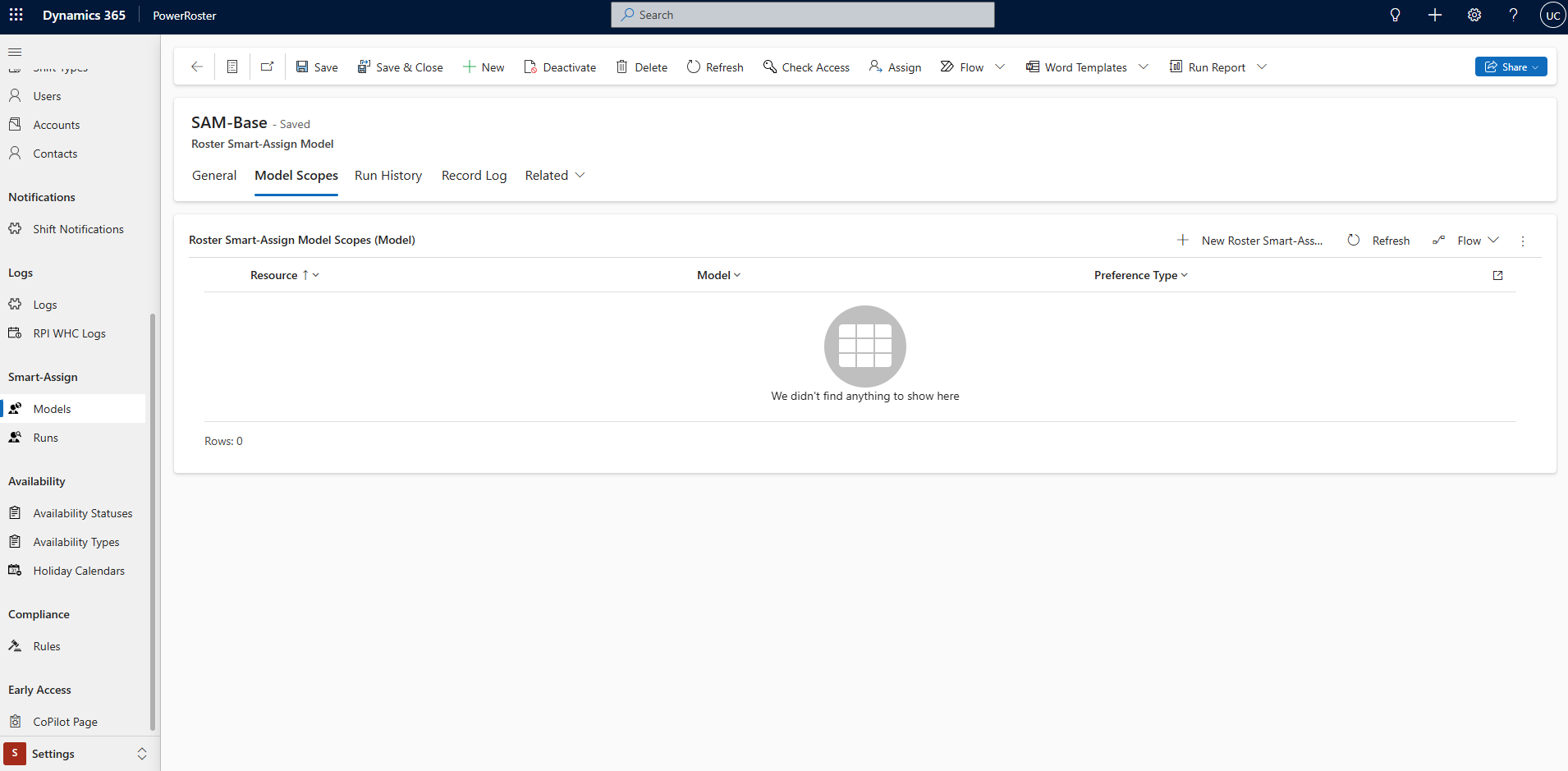
Go to the second tab and select Model Scopes. Users can define resource preferences within the model using the Model Scopes tab. This allows for more targeted and efficient shift allocation.
Field | Description |
Model | The model will be auto-populated. |
Resource | Add the Resource. |
Preference Type | Select the appropriate type: Preferred: This option marks certain resources as preferred. It has no effect unless the "Prioritise Preferred" attribute is enabled, which then gives these resources priority in the sorting order. Must Choose From: This restricts shift assignments to only the resources specified in this group. Use this setting to designate a specific set of resources for certain shifts or roles. Restricted: This identifies resources that should not be considered for assignment. Use this to exclude resources due to unavailability, lack of qualifications, or other criteria. |