A Campaign is a container for fundraising outreach and results, such as Appeals, Packages, Events, and Gifts. Each Campaign has links to create, plan, execute, and track results through its lifecycle. Records for fundraising activities require a related Campaign record.
Campaigns have Campaign records that you use to capture various information about each Campaign, and to parent Appeal records and Package records.
A Campaign can have multiple Appeals, which in turn can have multiple Packages, as depicted in the diagram below. Appeals or Packages cannot be created without a parent record.
.png)
Create a new Campaign
On the Change area menu, select Fundraising.
Under Manage Campaigns, select Campaigns.
On the action pane, select New.
.png)
Each Campaign record has these tabs:
The General tab contains data about the Campaign itself, such as its currency and its designation.
The Reporting Hierarchy tab lists appeals and Packages within the Campaign.
The Performance tab shows roll-up data about fundraising activities for the Campaign.
The Administration tab contains Campaign metadata, such as its creator, owner, and status.
The Related menu appears alongside the main Campaign tabs, and lets you open tabs for various fundraising elements, such as donor commitments and events.
Use these tabs to add data to the Campaign, as detailed in the following sections.
General tab
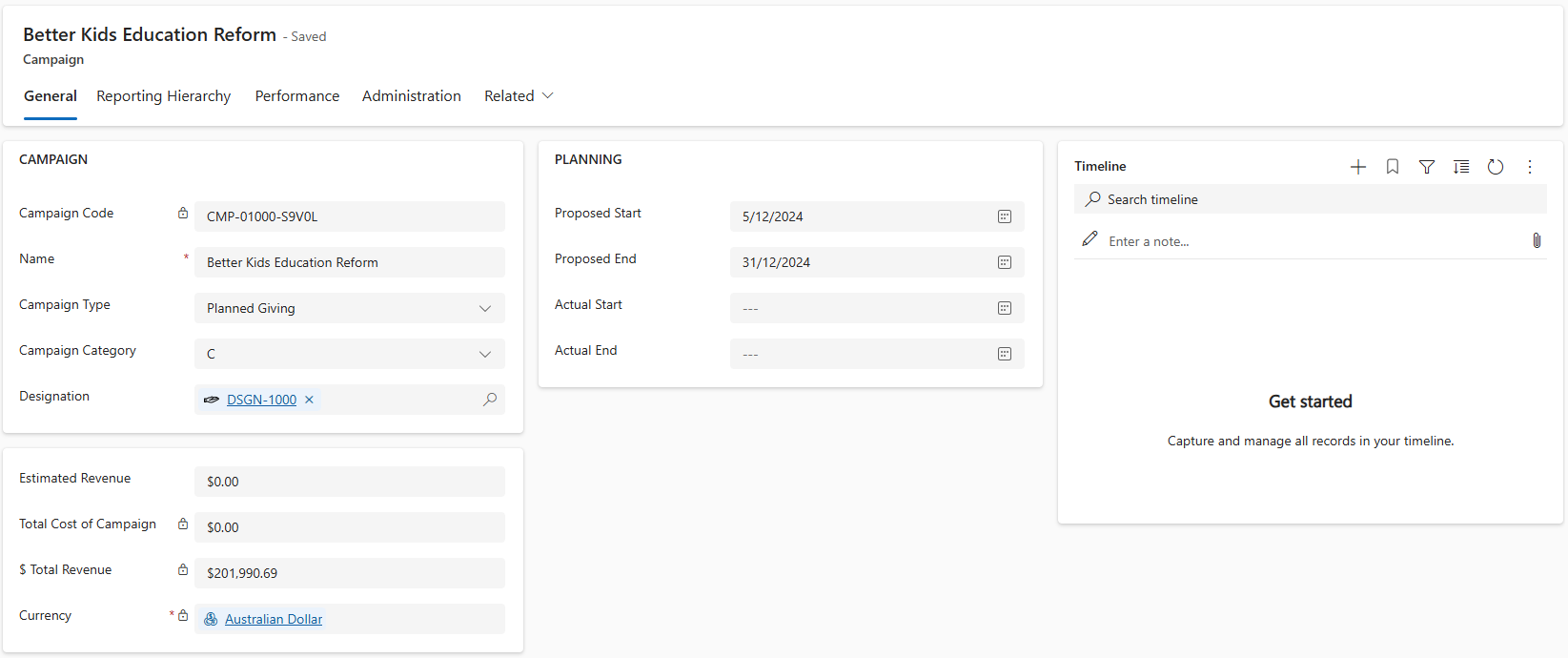
There are two sections on the General tab:
Campaign
Planning
Complete all the required fields on the form, and then select Save on the action pane to save and create the record.
Field | Description |
Campaign Code | A number or tracking code to identify the Campaign. You can enter this value manually or let PowerWorker Engage generate it automatically when you save a new Campaign record. |
Name | The title for the Campaign. This value appears in reports, and in Campaign lookup fields for records that require or are parented by a Campaign. |
Campaign Type | A classification for the Campaign's fundraising. Options are: Annual Giving, Capital, Membership, Operating, Other, Planned Giving, and Restricted. |
Campaign Category | Assigned by your organisation for use in metrics and reporting. |
Designation | The default designation for fundraising activities within the Campaign. Reflects the purpose or charitable cause that benefits from the Campaign. With a value in place, select the link to review details for the designation. |
Estimated Revenue | The total target amount for fundraising in the Campaign. |
Total Cost of Campaign | The sum of the amounts entered in the Total Cost of Campaign Activities and Miscellaneous Costs fields. Used to calculate the Return on Investment (ROI) and other donor metrics. |
Total Revenue | The calculated sum of all monetary values linked to the Campaign. Updates when users process transactions within the Campaign. |
Currency | A lookup field to choose the applicable currency for this Campaign. |
Proposed Start | The estimated date gifts begin to be counted toward this Campaign. Used for planning. |
Proposed End | The estimated date gifts are no longer counted toward this Campaign. Used for planning. |
Actual Start |
|
Actual End | The date the Campaign stops accepting gifts. Used for planning. |
Reporting hierarchy tab
The Reporting Hierarchy tab contains the Appeals and Packages associated with the Campaign.
You can click on any Appeal or Package to view the details within.
.png)
Performance Tab
The Performance Tab contains information about how the events and gifting has performed for the Campaign. You can find the collections for the Campaigns differentiated by Gifts and Events.
.png)
Example
This video demonstrates how to access and explore a Campaign record within the PowerWorker Engage application. It walks through the steps to locate a Campaign, view its details, and understand its performance metrics. This guide helps users quickly get familiar with Campaign tracking and analysis features in the app.