Notification Preferences allow you to control how vNudge delivers notifications to you.
You can configure your preferred delivery channel, define fallback channels, use an alternative email address, control delivery retries, or temporarily mute notifications.
Each user can have one Notification Preference. Only an active Notification Preference is used for delivery. If your Notification Preference is inactive, vNudge ignores its settings and uses a specified notification channel, or Email if no channel is specified.
Notification Preference Settings
Setting | Description |
|---|---|
Preferred Channel | The channel used when a notification does not specify a delivery channel. |
Channel Priority | The order in which channels are attempted if delivery through the first channel fails. |
Secondary Email | An alternative email address used for Email notifications. |
Mute All | Prevents notifications from being delivered. |
Max Retries | The number of times vNudge retries a channel before attempting the next fallback channel. |
Max Retries supports values from 0 to 3, with a default value of 3.
Configure Your Notification Preferences
Open the vNudge application.
Navigate to your Notification Preference.
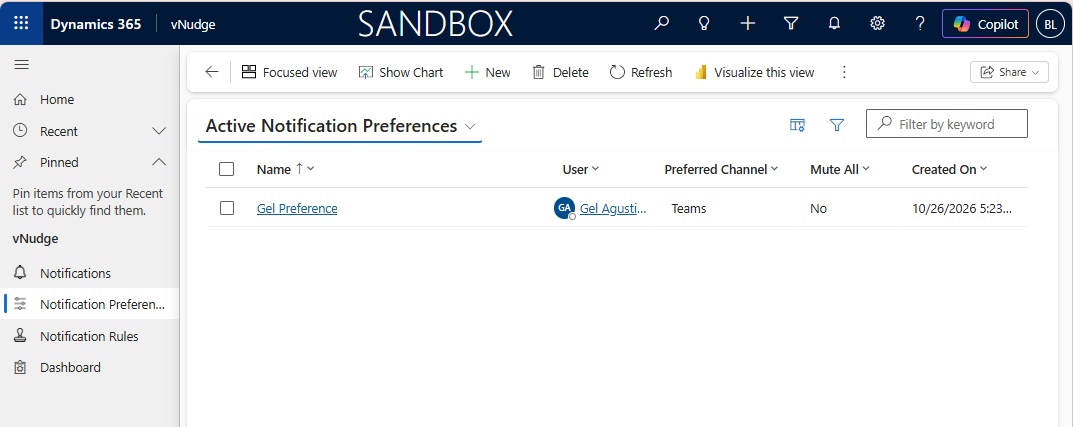
Select your Preferred Channel.
Configure Channel Priority if you want vNudge to use another channel when delivery fails.
Enter a Secondary Email if you want Email notifications delivered to an alternative email address.
Set Max Retries between 0 and 3.
Enable Mute All if you want to temporarily stop receiving notifications.
Save your changes.
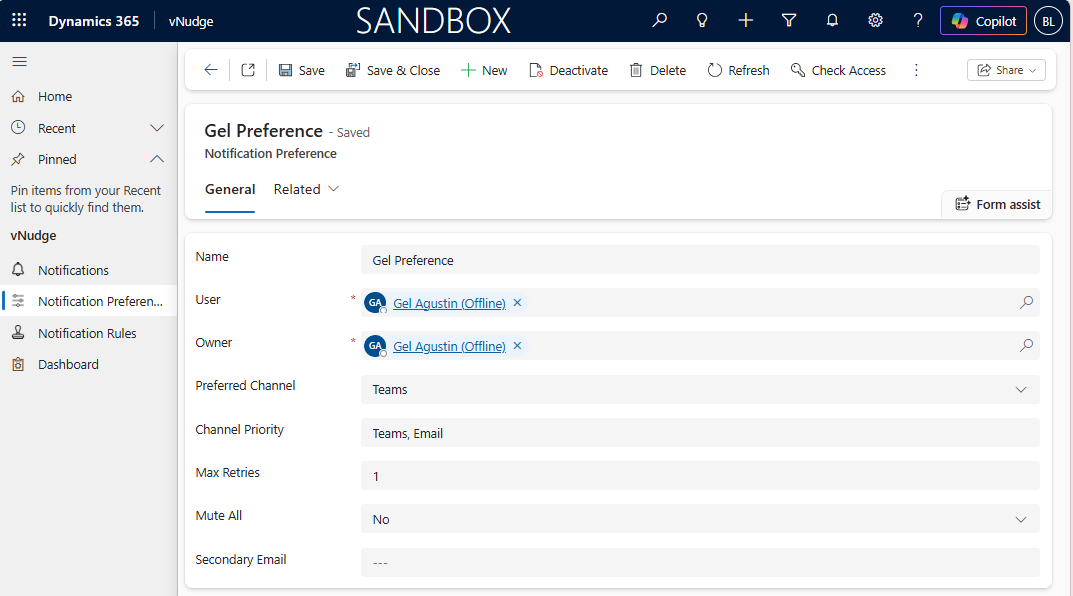
Active and Inactive Preferences
Only an active Notification Preference is used when determining notification delivery.
When your Notification Preference is active, vNudge uses your configured Preferred Channel, Channel Priority, Secondary Email, Mute All, and Max Retries settings.
When your Notification Preference is inactive:
Your notification preference settings are ignored.
If a notification specifies a delivery channel, vNudge uses that channel.
If no delivery channel is specified, vNudge uses Email.
Reactivating your Notification Preference restores your configured settings.
Important
Deactivating a Notification Preference is different from enabling Mute All. An inactive preference is ignored by vNudge, while Mute All keeps the preference active but suppresses notification delivery.
Preferred Channel
Preferred Channel determines which delivery channel vNudge uses when a notification does not specify a channel.
vNudge determines the channel in the following order:
If the notification specifies a channel, vNudge uses that channel.
If no channel is specified, vNudge uses your Preferred Channel.
If you do not have a Preferred Channel configured, vNudge uses Email.
Important
A channel specified by the sending application or Notification Rule takes precedence over your Preferred Channel.
Channel Priority
Channel Priority determines the order in which vNudge attempts fallback channels when delivery fails.
For example: Teams, Email
With this configuration, vNudge attempts Microsoft Teams first. If delivery continues to fail after the configured retry allowance is exhausted, vNudge can attempt Email.
Important
Channel Priority is a fallback sequence. Once a notification is delivered successfully, vNudge does not continue sending it through the remaining channels.
Secondary Email
Secondary Email allows you to use an alternative email address for email notifications.
When Email is the selected delivery channel and a Secondary Email is configured, vNudge uses the Secondary Email instead of the email address on your Dataverse user record.
Secondary Email does not affect Microsoft Teams or In-App notifications.
Mute All
Enable Mute All when you want to temporarily stop receiving notifications.
When Mute All is enabled:
vNudge does not attempt notification delivery.
New notifications are given the Suppressed status.
The notification is not treated as a delivery failure.
Disable Mute All when you are ready to receive notifications again.
Note
Disabling Mute All allows new notifications to be delivered. Notifications that were previously suppressed are not automatically treated as new notifications.
Max Retries
Max Retries determines how many times vNudge retries the current delivery channel before attempting the next channel in Channel Priority.
Value | Behaviour |
|---|---|
0 | Do not retry the current channel. Proceed directly to the next configured fallback channel. |
1–3 | Retry the current channel up to the configured number of times before attempting a fallback channel. |
Retries use an increasing delay:
Retry | Delay before retry |
|---|---|
1 | 30 seconds |
2 | 60 seconds |
3 | 120 seconds |
After the retries for the current channel are exhausted, vNudge attempts the next channel in Channel Priority. Each fallback channel receives its own retry allowance.
If all configured channels and retries are exhausted, the notification receives the Failed status.
Note
Setting Max Retries to 0 skips same channel retries and allows vNudge to proceed directly to the next configured fallback channel.
Example
A user wants Microsoft Teams to be their preferred notification channel, with email available as a fallback.
Configure the Notification Preference as follows:
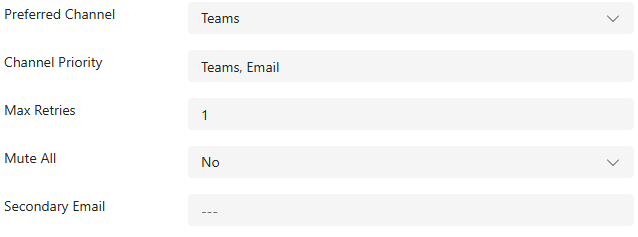
Ensure the Notification Preference is Active.
When a notification does not specify a delivery channel:
vNudge attempts delivery through Microsoft Teams.
If Teams delivery fails, vNudge waits 30 seconds and retries Teams once.
If Teams continues to fail, vNudge attempts delivery through email.
If Email fails, Email receives its own retry allowance.