Event tables are part of the Events area. To work with event table records, select Event Tables under the Event Transactions.
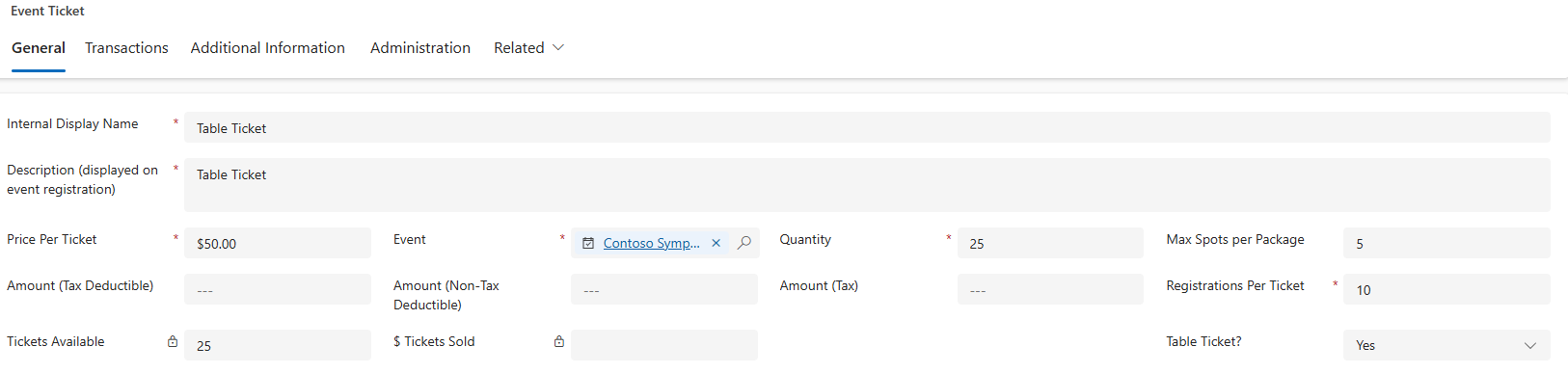
You can create an Event Table record manually or automatically as part of the event setup process when you create a table ticket.
Create an event table manually
In the navigation pane, select Events from the Change area menu.
Under Event Transactions, select Event Tables.
On the action pane, select New.
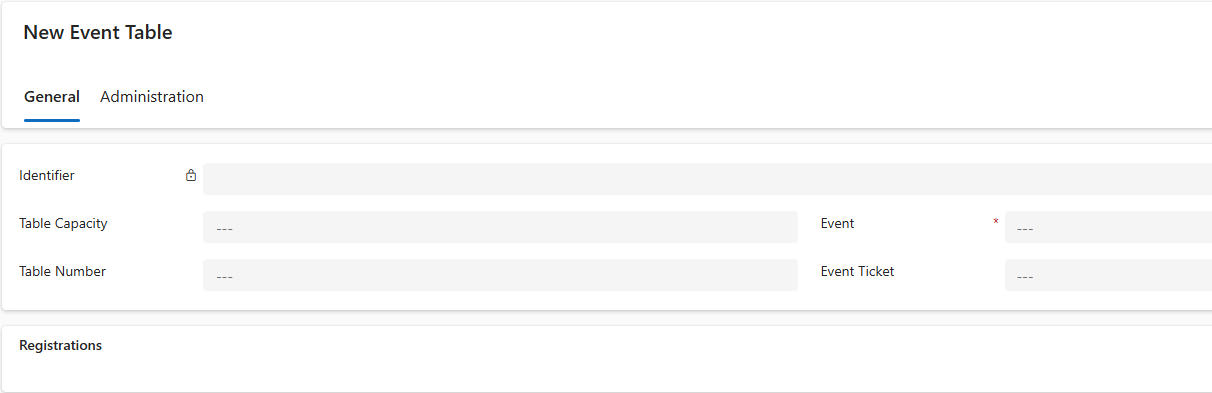
The Event Table form opens. The Event field is required.
Select Save and Close. The new table is listed under Active Event Tables.
Field | Description |
Identifier | READ-ONLY. The solution generated unique identifier for this record, empty until the record is saved. |
Table Capacity | Enter the total number of seats available at the table. |
Table Number | Enter the number assigned to this event table. |
Event | REQUIRED. A look-up to the Event record. |
Event Ticket | A look-up to the Event Ticket record. |
Registrations | A table where event Registrations are populated. |
To create an event table during event setup: when you add components, add a ticket and set Table Ticket to Yes.
Assigning attendees to a table
To assign attendees and specific table numbers to tables, follow these steps.
Click on New Registration on the Registrations subgrid. This will open a new Registration window.
Enter the required details.
Click on Save or Save & Close to save the record.
You add existing registrations to the table by clicking the Add Existing Registration button on the Registrations subgrid.
Use the lookup to search for registrations by registration number (for example, REG-1234) to add to the event table. Select Add.
Each attendee is added to the table under the registrations. Select Save & Close to save the record. The list of tables associated with this event is displayed.