Add a Shift
You can add a Shift to a Roster through the Calendar tab using the + icon in the upper right corner of the calendar or on the date itself.
For more details, refer to Add Additional Shift.
.png)
Add a Roster Position
You can add a Roster Position to the Roster through the Calendar tab using the Add a position icon on the screen.
For more details, refer to Create Roster Position.
.png)
Search the Calendar
Navigate to the search box, enter what you want to search for, and press Enter.
.png)
Display Demand Forecast
To view the Demand Forecast, enable the toggle in the upper right corner of the Calendar .png) . This will display the demand forecasting for the selected days.
. This will display the demand forecasting for the selected days.
For more details, refer to Demand Forecast.
.png)
Display All Resources
To view All Resources within the Roster, even if they don’t have an allocated shift, enable the toggle in the upper right corner of the Calendar .png)
This includes all Resources that are assigned to Allocation and Segment records. If a Resource has been assigned to an RPI only, then it is not included in the All Resources list.
.png)
Calendar Viewing and Ordering Actions
Right clicking on the Roster Position, displays a submenu that allows the user to view the calendar based on their needs.

Collapse All: Collapses all Roster Positions.
Expand All: Expands all Roster Positions.
Order Resources: Allows users to order resources in a manner they want to view.
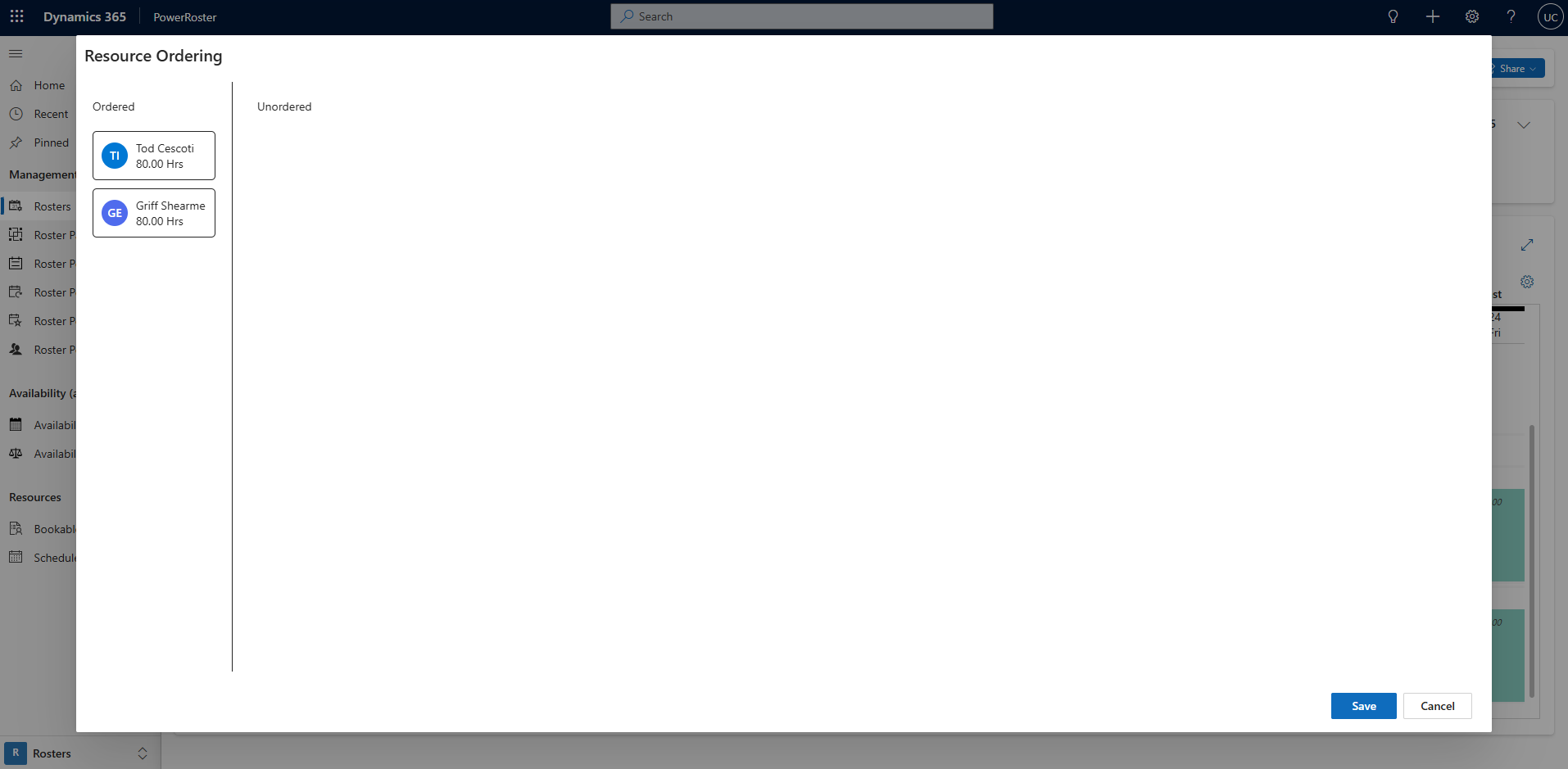
Order Groups: Allows users to order allocation groups in a manner they want to view.

Note
The Roster Calendar operates with default settings, with additional settings that can be configured by default or per Roster.
The Roster Calendar Control loads by default once the Roster has been saved, providing a visual representation of the Roster.
Resource panel – Resource card and shift card is configurable.
The colour that shows for the Shifts on the Roster Calendar can be configured in Administration – Configuration Data – Shift Types.
Calendar Settings
You can customise your calendar settings to accommodate your preferences. Click on the gear icon in the top right corner of the calendar to access the menu.
Refer to Roster Settings for more details.
.png)