Each question in a vForm Template can be customised with a variety of configuration options. These properties control how questions behave, appear, and interact with user inputs.
Below are the key configuration panels available under the Designer tab in vForm Templates.
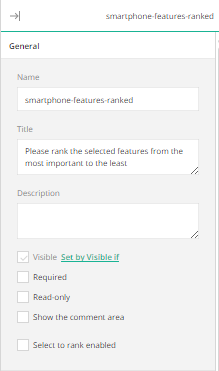
General Settings
The General section allows you to define the basic properties of a question. A user can:
Set a Name and Title for the question.
Add a Description to help users understand the question.
Control visibility and behaviour by marking the question as Visible, Required, Read-only, or Show the title and description.
Change Input Type for the field.
Provide a placeholder text for the field (if needed).
Define Autocomplete type.
Provide a list of items for auto-suggest.
Layout Settings
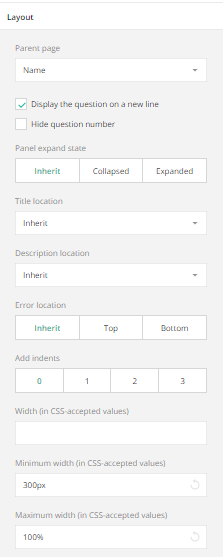
Use the Layout panel to control the visual arrangement of the question:
Display the question on a new line or alongside the previous question
Choose how the question will be displayed — Locked, Collapsed, or Expanded.
Choose the Question title alignment.
Choose the Question description alignment.
Choose the Error message alignment.
Choose the margin between the question content and left border of the question box using the Increase the inner indent option.
Choose the width of the question in proportion to the other survey elements in the same line using the Inline question width option.
Choose the minimum and maximum question width.
Choose the input value alignment of the answer text.
Conditions Settings
The Conditions section defines dynamic behaviours for the field including when questions should appear, become editable, or display conditional values.
Users can choose from the following condition settings:
Make the question visible if: Show a question only when a condition is met.
Disable the read-only mode if: Make a question editable only under certain conditions.
Make the question required if: Dynamically require an answer.
Set value if: Automatically fill in a value when criteria are met.
Reset value if: Automatically reset the value when criteria are met.
Default value expression: The setting allows you to assign a default answer value based on an expression.
Set value expression: Specify and expression that defines the value to be set when the conditions in the “Set value if“ rule are met.
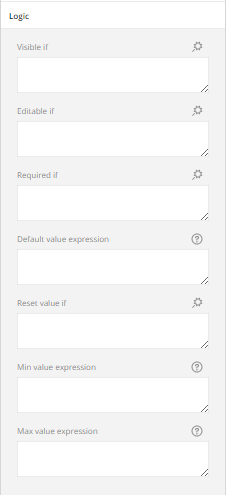
The Logic panel supports multiple expressions for visibility, default values, and validation logic.
Example of Conditions
The form includes a Yes/No question, “Are you over 18 years of age?”
On the next question, “Birth Date“, an expression is entered in the “Make the question visible if“ field.
Logic expression:{18yearsandabove} = trueIf the user selects “Yes”, the Birth Date question will be shown to the user.
If the user selects “No”, the Birth Date question will be hidden from the user.
.png)
Data Settings
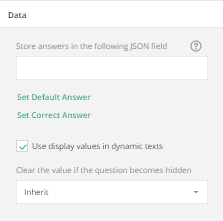
The Data panel controls how information is stored and prefilled.
Users can choose from the following data settings:
Join Identifier - A join identifier is a custom key that users assign to several questions to link them together and sync their values. These values are merged into a single array or object and stored in survey results using the key as the property name.
Define Default Answers or Correct Answers for the question.
Enable Dynamic Text Values for real-time updates and define Default display value for dynamic texts.
Choose whether or not to Clear hidden question values set by conditional logic and when to do it.
Validation Settings
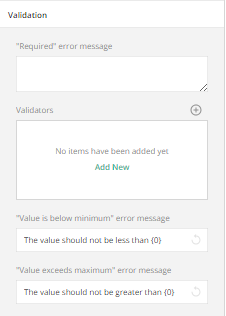
The Validation section defines rules to ensure input accuracy and improve user experience.
Users can choose from the following validation settings:
Create custom validation rules that validate the question and display an error in an appropriate manner as defined by the admin.
Create a custom Error message for required questions that may be left unanswered.
Add numeric or range validators along with custom error messages for minimum and maximum value breaches.
Choices Settings
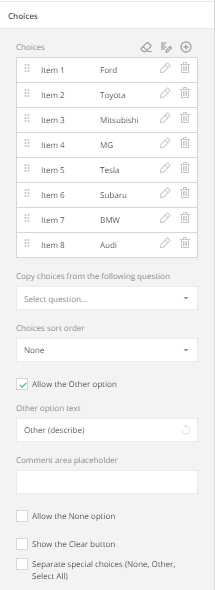
If the question type involves selectable options (e.g., Radio Buttons, Dropdowns, or Checkboxes), an additional Choices Options panel is visible which allows the admin to:
Add, edit, or delete choices.
Copy choices from an existing question.
Choose an order for the choices (None, Ascending, Descending, or Random).
Enable the “Other” option for the question.
Enable the “None” option for the question.
Enable the “Select All” option for the question.
Define the Minimum choices the user must select for the question.
Define the Maximum choices the user must select for the question.
Choose whether “Other“, “None“, and “Select All“ options should be displayed on the same line or separate lines.
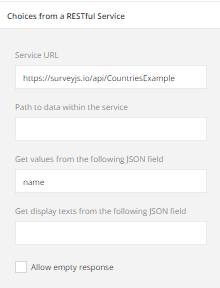
Choices from a Web Service
This feature allows you to utilise RESTful Services to populate dropdowns with live data from your Dataverse environment or external API.
Define the Web Service URL (API endpoint).
Set the path to data
Get value to store from the following property - Enter a uniform property name within the array of objects whose value will be stored as a response in survey results.
Get value to display from the following property - Enter a uniform property name within the array of objects that contains the values you want to display in the choice list.
Select Accept empty response to allow the service to return an empty response or survey.